
Text to Video
A 4–15 second clip with sound from one sentence — 9:16 for Reels, 16:9 for YouTube
4 free credits on signup — no card, no watermark.
- 1Type what happens in the clip — put spoken lines in quotes
- 2Pick a tier, a resolution, a length and a shape; the total shows on the button
- 3Render, then download, make a variation or reuse the clip in your edit
Standard
4 credits
Pro
4 credits
Max
4 credits
Most creators have the idea for the clip long before they have the footage. Text to Video closes that gap: you type what happens — who is in frame, where they are, what the camera does, what they say — and a short clip comes back with sound. It is built for the formats you actually post: 9:16 for Reels, Shorts and TikTok, 16:9 for YouTube b-roll and intros, 1:1 for feed posts. Clips run four to fifteen seconds, which is the length of a hook, a transition, a product reveal or a piece of b-roll under a voiceover. No stock library, no shoot day, no waiting on a friend with a camera.
The controls stay simple. The tier sets the engine: Draft is the cheapest way to test motion and timing, Standard is the everyday tier with sound and spoken lines, Pro is for the hero clip at up to 1080p. Resolution and length set the price per second, and the button always shows the total before you commit. Dialogue works by putting the line in quotes inside the prompt; the clip gets a voice for it. When you need the same character, product or style across several clips, attach up to nine reference images from your creations — the engine keeps them consistent from shot to shot. If the first frame is a photo of a real person, pick People: Standard and Pro can't animate real faces.
A good workflow is to write one line, render it on Draft, and look at the motion before spending more. Then switch to Standard for the version you post and Pro only for the one clip that carries the whole video. Every render lands in your creations rail with a poster frame; download it, make a variation with the same settings, or reframe a still from your rail and feed it in as a first frame with Photo to Video. Clips that get blocked by moderation or fail on the provider's side are refunded on Standard and Pro.
What you control
- What happens in the clip
- TierStandard — 3 cr/s at 480pDraft — 1 cr/s at 720pPro — from 6 cr/sPeople — from 6 cr/s, animates a photo of a person
- Shape9:16 vertical16:9 wide1:1 square4:33:421:9 cinematic
- SoundWith soundSilent
Every tool comes with
- The right ratio for the platform, already set
- Standard, Pro and Max tiers per run
- Edit with words, reframe, upscale or animate the result
- Everything saved to your creations rail
Questions
Which shape should I pick for Reels and Shorts?
9:16 — it is the default. Use 16:9 for YouTube intros and b-roll, 1:1 for feed posts and 21:9 when you want a cinematic strip.
Does the clip have a voice if I write dialogue?
Yes. Put the spoken line in quotes inside your prompt and keep sound on. Short lines of one or two sentences come out clearest.
How do I keep the same person across several clips?
Add reference images from your creations — up to nine. A photo of the person, a product shot and a style frame are a strong set. If you also set a first frame, references are dropped, so use one or the other.
What happens to my credits if a clip fails?
Standard and Pro renders that are blocked by content policy, hit an outage or time out are refunded automatically. Draft renders are not refunded once dispatched, which is why Draft is the cheap testing tier.
Can I try Text to Video without paying?
Yes — every new account starts with 4 free credits, enough for a Standard run of most tools. Plans start at $15 for 1,000 credits a month and packs at $4.99 for 250.
Photo to Video
Any still from your rail or your phone becomes a moving clip with sound
AI Influencer Videos
Clips of your AI influencer talking, walking, unboxing — from a sentence
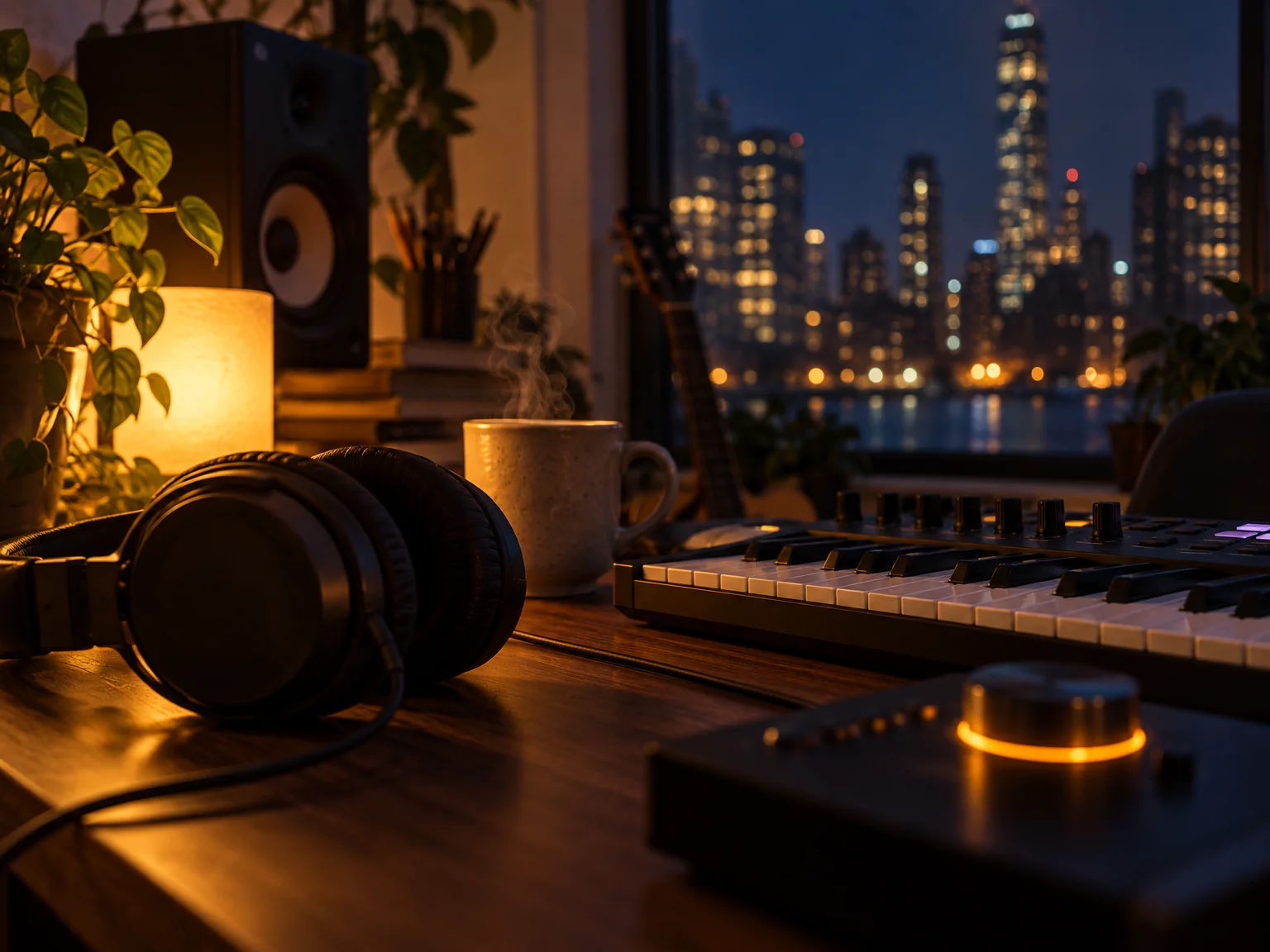
Music & Soundtracks
Music & Soundtracks
A 30-second bed for 2 credits or a full song with your lyrics for 16
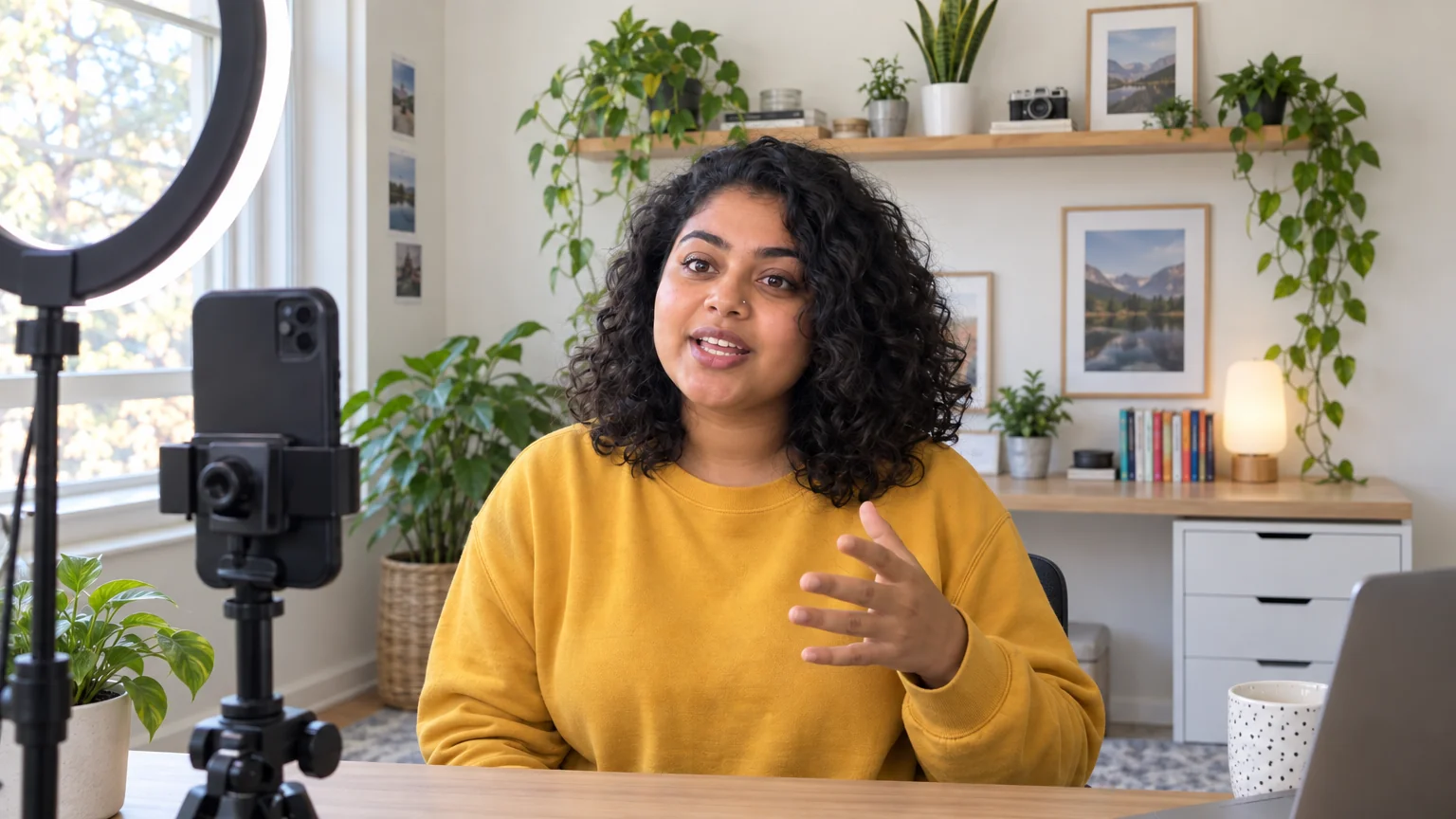
 In
InReframe for Platform
16:9 to 9:16 to 1:1 to 3:1 — the subject stays, the scene extends or crops