
Pixel Art for Streams
8-bit, 16-bit and 32-bit pixel scenes for overlays, starting screens and posts
4 free credits on signup — no card, no watermark.
- 1Describe the scene, setting and mood
- 2Pick 8-bit, 16-bit or 32-bit density
- 3Generate, then Reframe to 16:9 for stream screens

Standard
2 credits
Pro
10 credits
Max
42 credits
Retro sells on stream and on the grid. A pixel-art starting-soon screen, a be-right-back scene, a tiny version of your desk for the about page, a devlog cover, a birthday post for a game your audience grew up with. Pixel Art Scenes makes real pixel art, with a visible grid, limited colors and crisp edges, from a normal sentence. You do not need to place a single pixel yourself. Describe a knight at a castle gate or your streaming room at night, choose how chunky you want it, and get a square scene that reads like it came off a cartridge, ready for an overlay, a Discord banner or a fan wallpaper.
Write the scene in the Describe the scene field: subject, setting, time of day, a color or two. Then choose Pixel resolution. 8-bit is the chunkiest, with big blocks and a handful of colors, like early console titles. 16-bit gives finer detail and richer palettes, the look most people picture when they say pixel art. 32-bit is the most detailed, with smooth gradients built from many small pixels, closer to late-era 2D games. Every result is 1:1 and keeps consistent pixel size across the whole image, so nothing looks half-rendered. Lighting and mood follow your description, and there is no blurry anti-aliasing to break the effect.
Test ideas at Standard for 2 credits; pixel art is forgiving at that tier because the grid hides small flaws. Rerun a keeper at Pro for 10 credits when it is going full-screen as an overlay. Upscale it with nearest-neighbor scaling in your editor so the pixels stay sharp, or run Upscale here for larger prints. Reframe extends a square into 16:9 for a stream scene. Animate a keeper with Photo to Video for a subtle looping intro. Make matching pixel icons in Channel Icons with the pixel style so your whole layout is one era. Your 4 free credits at signup cover a first Standard scene.
What you control
- Describe the scene
- Pixel resolution8-bit16-bit32-bit
- 1:1 output
Every tool comes with
- The right ratio for the platform, already set
- Standard, Pro and Max tiers per run
- Edit with words, reframe, upscale or animate the result
- Everything saved to your creations rail
Questions
Why does 8-bit look so blocky compared to my prompt?
That is the point of 8-bit: large pixels and a tiny palette, so fine details get simplified into a few shapes. If you want the detail you described to survive, move up to 16-bit or 32-bit.
How do I make it fit my full stream layout?
Generate the square scene first, then open it in Reframe and choose 16:9. The extension continues the pixel grid outward. For a top-bar or side-panel crop, take the 16:9 result into Stream Panels.
Can I get a pixel version of my actual room or face?
Describe your room in detail and you will get a close interpretation. For a face, make a pixel-style portrait through Original Characters with the pixel option, or describe your features and outfit here.
Does it keep the pixels sharp when I enlarge it?
Use nearest-neighbor scaling in your editor to keep hard pixel edges, or run Upscale here, which preserves the grid well. Avoid default smooth resizing, which blurs the pixels and kills the effect.
Can I try Pixel Art for Streams without paying?
Yes — every new account starts with 4 free credits, enough for a Standard run of most tools. Plans start at $15 for 1,000 credits a month and packs at $4.99 for 250.
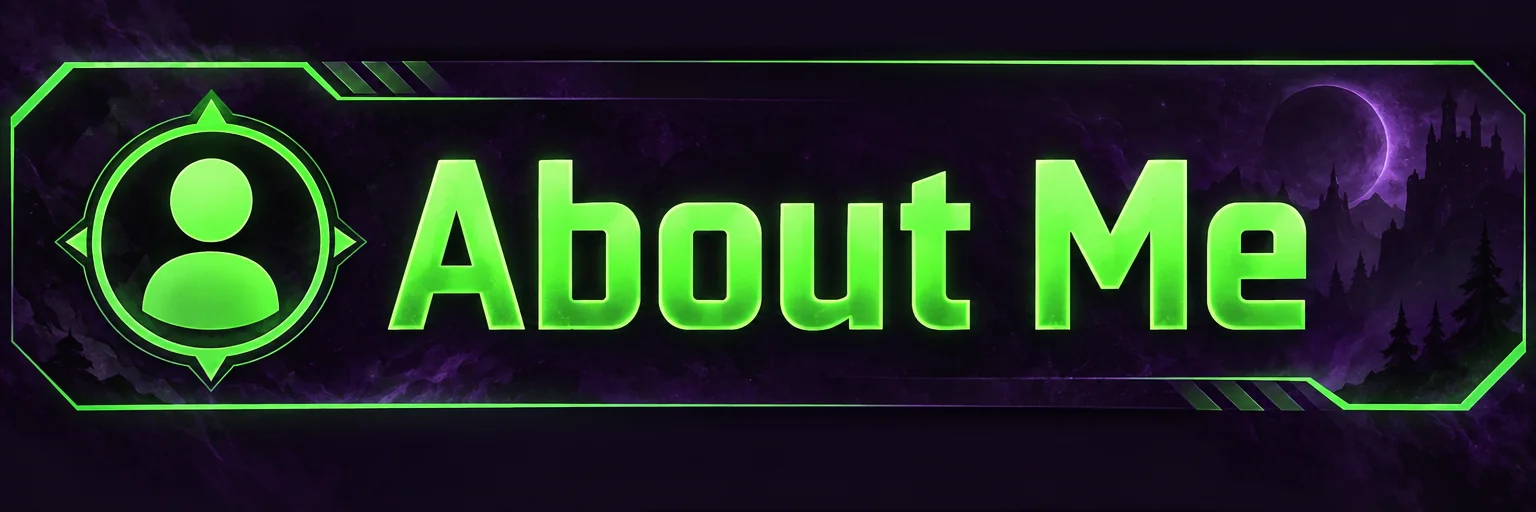
Twitch Panel Maker
3:1 Twitch panel banners — About, Schedule, Rules, Donate — as a matching set
 In
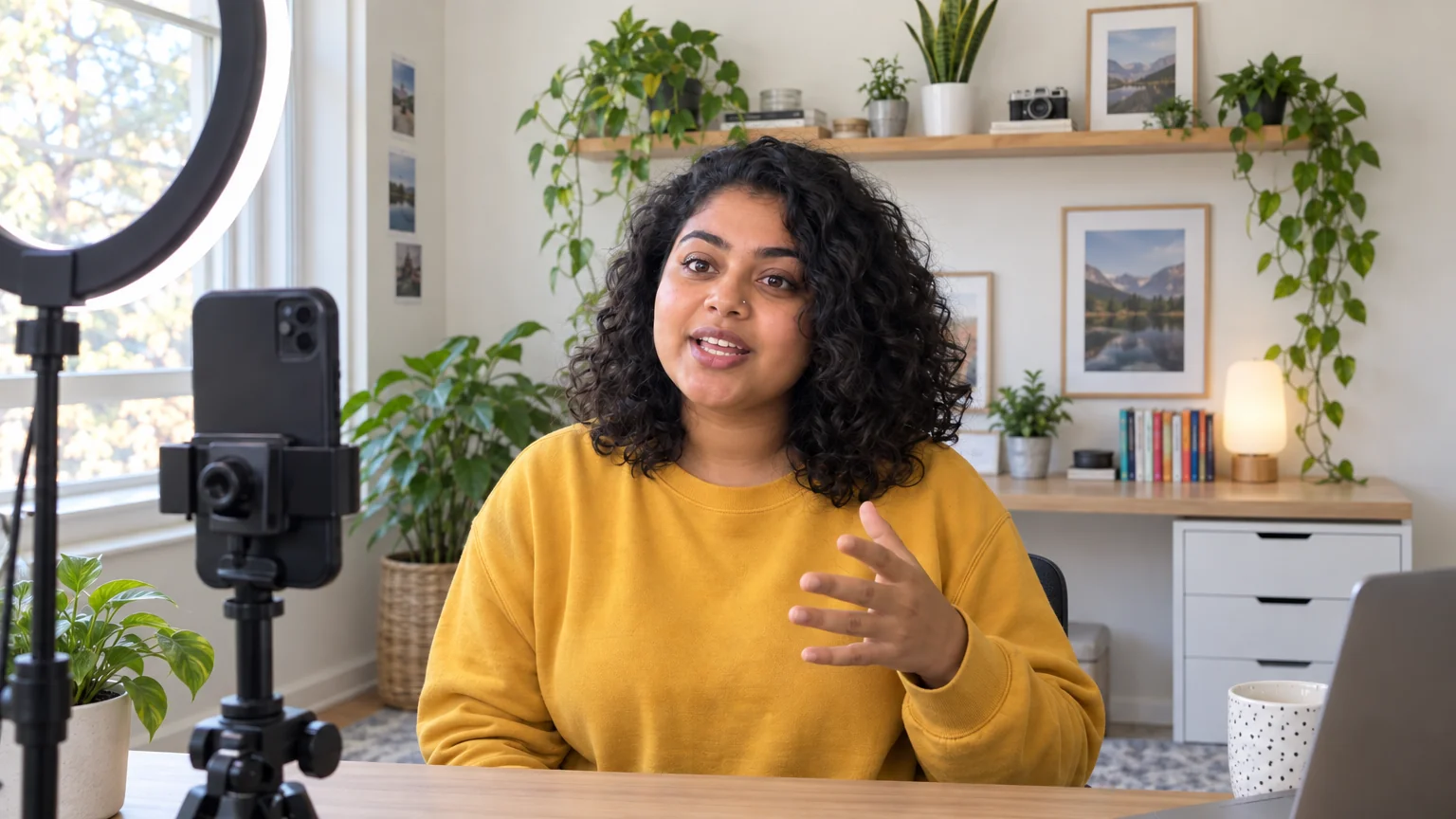
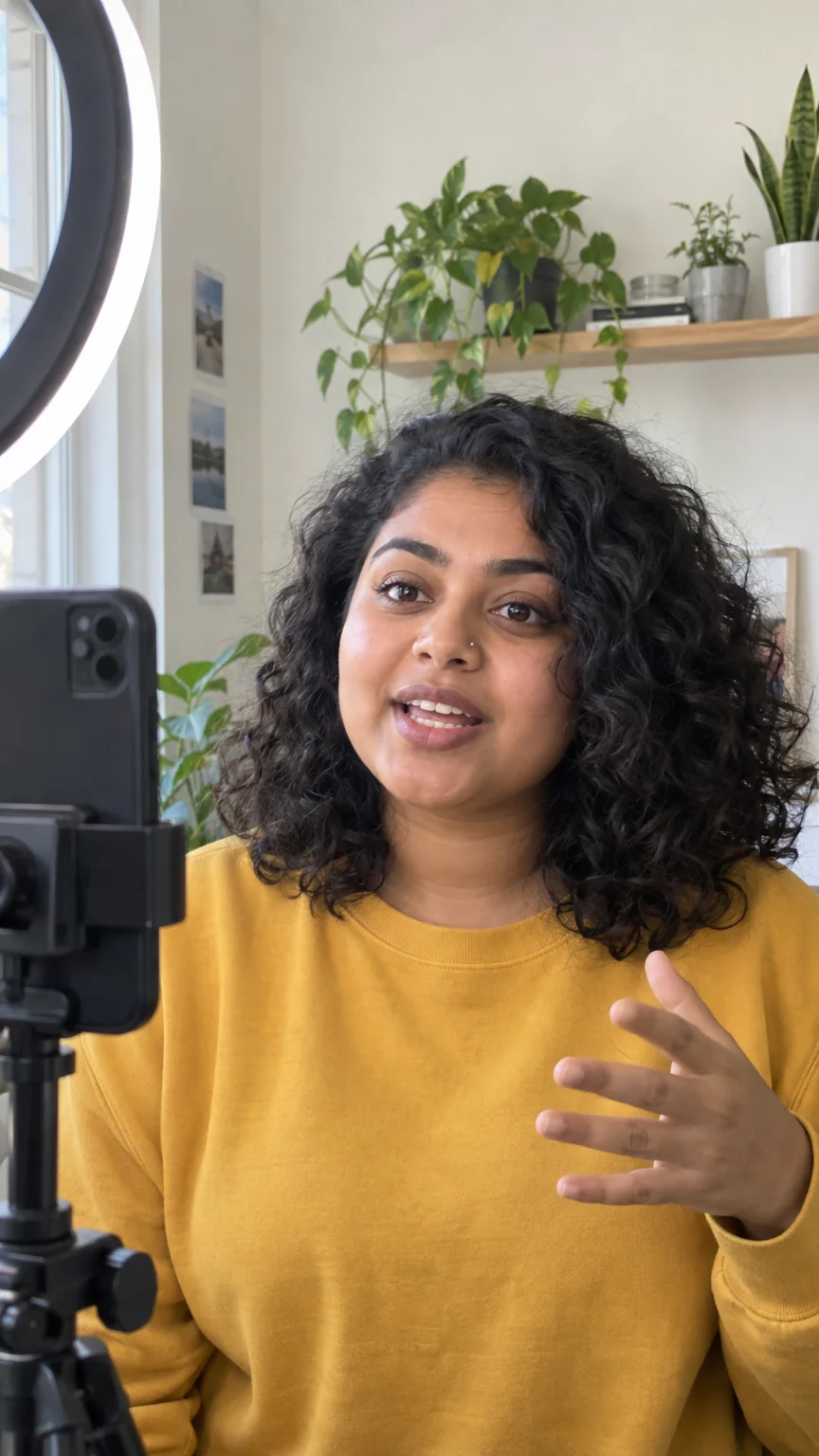
InReframe for Platform
16:9 to 9:16 to 1:1 to 3:1 — the subject stays, the scene extends or crops

Channel Icon Maker
Clean, transparent icons for overlays, panels and posts in one consistent style
Photo to Video
Any still from your rail or your phone becomes a moving clip with sound