
Remove a Person
Describe who to remove and they vanish, background rebuilt behind them
4 free credits on signup — no card, no watermark.
- 1Upload the photo
- 2Type who to remove, as specifically as you can
- 3Run it, then Reframe if the composition shifted


Standard
4 credits
Pro
12 credits
Max
44 credits
You finally got the shot at the overlook and there is a stranger in a neon vest standing in the middle of it. Or you made a collab clip cover with three people and one of them dropped out of the project. Or an ex. Remove a Person takes a photo and a plain description of who should go, and returns the same frame without them. The railing they were leaning on is still there. The wall behind them is rebuilt with the right texture and light. Everyone you wanted to keep is untouched, standing exactly where they stood, and the photo looks like they were never in it.
Two inputs: the photo and a text field for who to remove. Be specific the way you would be to a friend: the guy in the blue cap on the left, the group in the background, everyone except me. The tool finds the match, lifts them out and fills the gap using the surrounding scene, so a brick wall continues as brick and a beach horizon stays level. Shadows and reflections that belonged to the removed person go with them. The people who remain keep their faces, outfits and poses. Framing does not change and nothing gets cropped, which means the result drops straight back into the post you planned.
Start at Standard to confirm the right person was picked. If the fill behind them looks slightly soft, rerun at Pro for cleaner texture, especially on patterned walls or crowds. A single photo run is 4 credits at Standard, 12 at Pro and 44 at Max, and your 4 signup credits cover the first one. Removing someone often leaves the composition off-center, so send the result to Reframe to recenter for the grid, or to Expand Image if you need more room on one side. If you are swapping a collaborator in rather than out, follow up with Add Someone to Photo and put the new person in the same spot.
What you control
- Photo with the person in it
- Who to remove
Every tool comes with
- The right ratio for the platform, already set
- Standard, Pro and Max tiers per run
- Edit with words, reframe, upscale or animate the result
- Everything saved to your creations rail
Questions
What should I type if there are several people I want gone?
List them in one line, or describe the group: the three people behind us, everyone on the left side. You can also say who to keep, like everyone except the woman in the green dress.
Does it keep the person I want in the photo exactly the same?
Yes. The people you do not name stay as they are, down to expression and outfit. Only the described person and their shadow are removed and the background behind them is rebuilt.
Why does the fill look blurry on a busy background?
Crowds and fine repeating patterns are the hardest areas to rebuild. Rerun at Pro for more detail, and if a small patch still looks off, touch it up in Edit With Words.
Can I remove someone who is overlapping the person I want to keep?
Yes, and the tool will reconstruct the covered part of the person you keep, like a shoulder or arm. Heavy overlap across a face is harder, so check the result closely and rerun if needed.
Can I try Remove a Person without paying?
Yes — every new account starts with 4 free credits, enough for a Standard run of most tools. Plans start at $15 for 1,000 credits a month and packs at $4.99 for 250.

 In
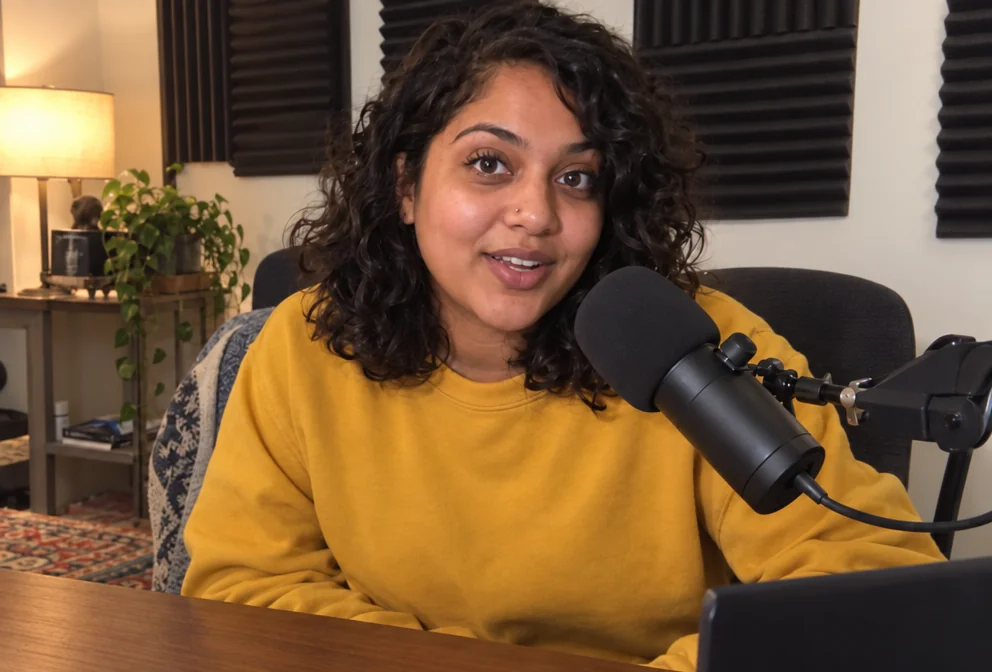
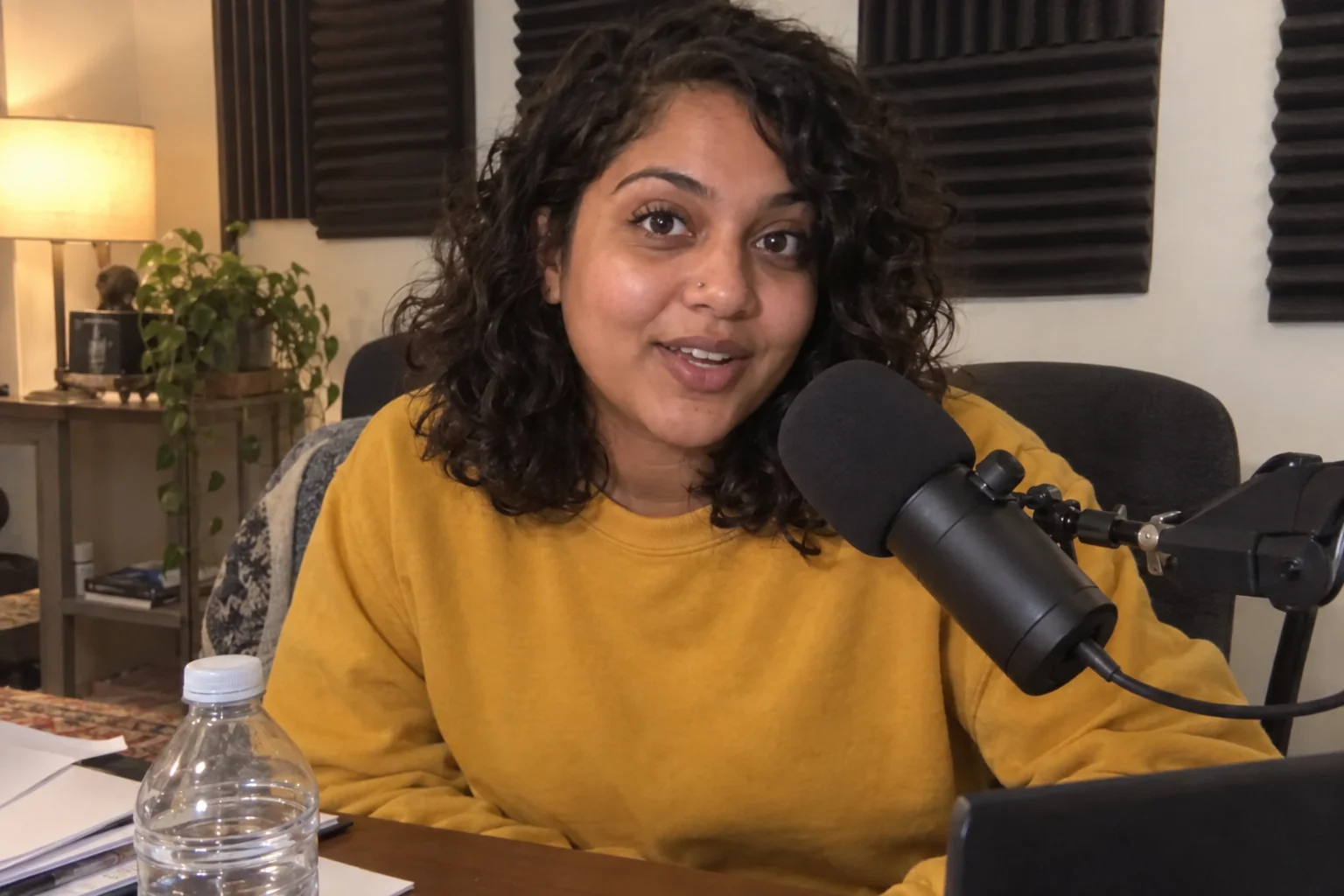
InAdd Someone to a Photo
Drop a person from one photo into another, matched to the light and scale
 In
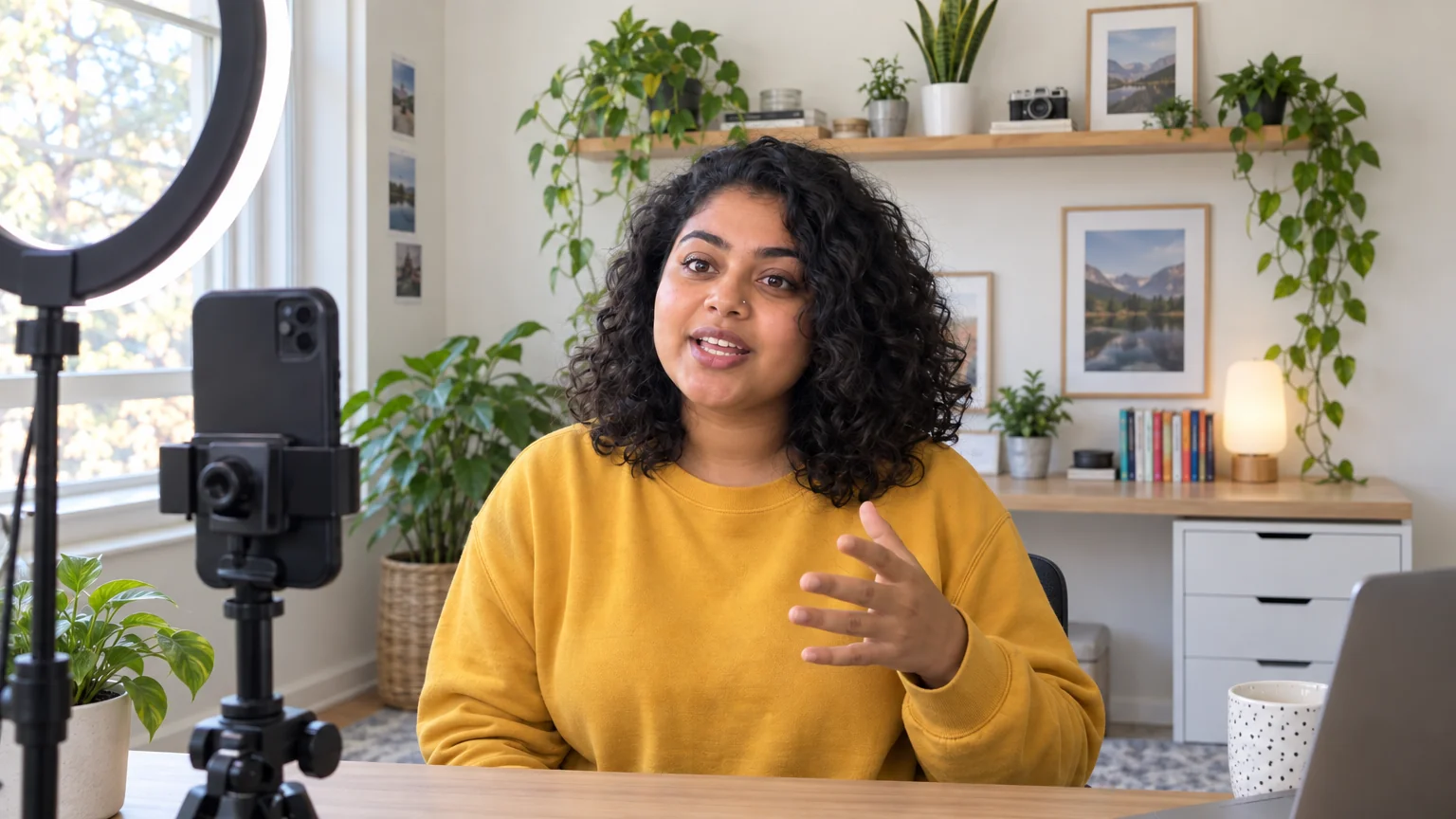
InObject Remover
Remove the water bottle, the cable, the stranger — filled in naturally
 In
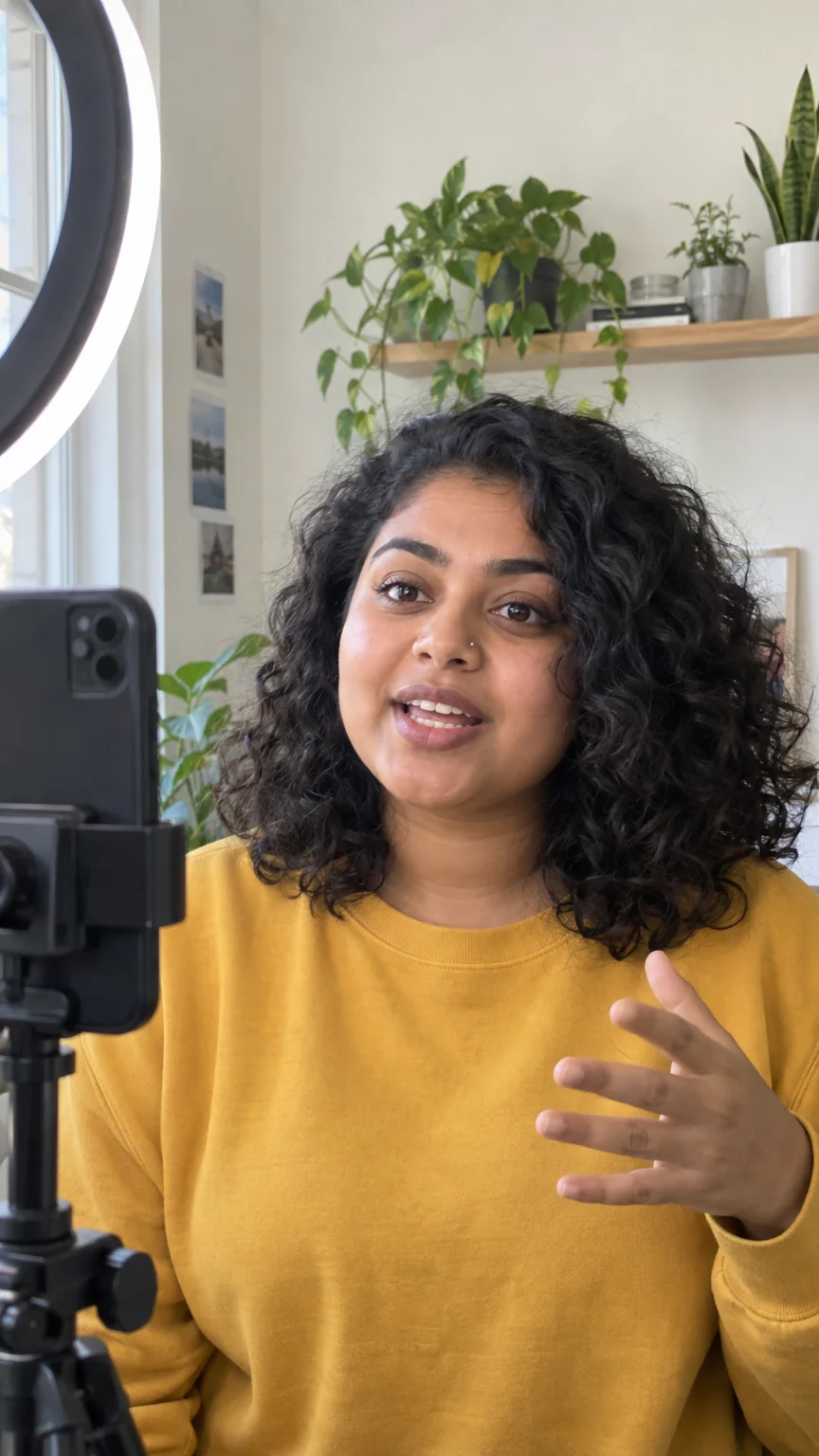
InReframe for Platform
16:9 to 9:16 to 1:1 to 3:1 — the subject stays, the scene extends or crops

 In
InExtend the Frame
Stretch a 9:16 grab into a 16:9 thumbnail with the scene filled in.